The proofing toolset, plus the layer that remembers.
Everything below works the way you'd expect from a review tool. The last two are what most proofing tools don't have.
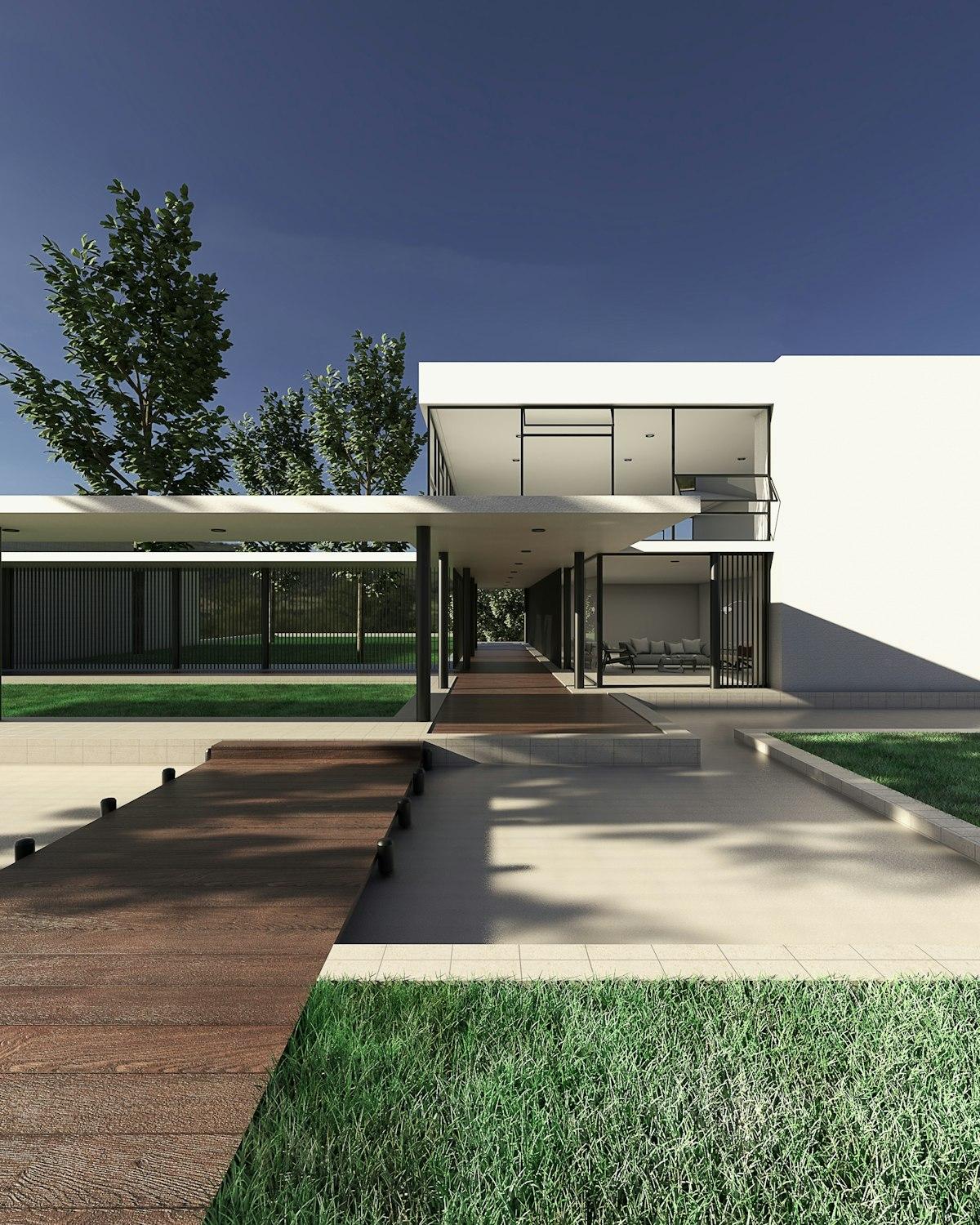
“Move the entry light fixture up 6 inches.”
Pinned comments
Click anywhere on the artwork to drop a numbered pin. Feedback stays attached to the exact spot it's about, not a line in an email.
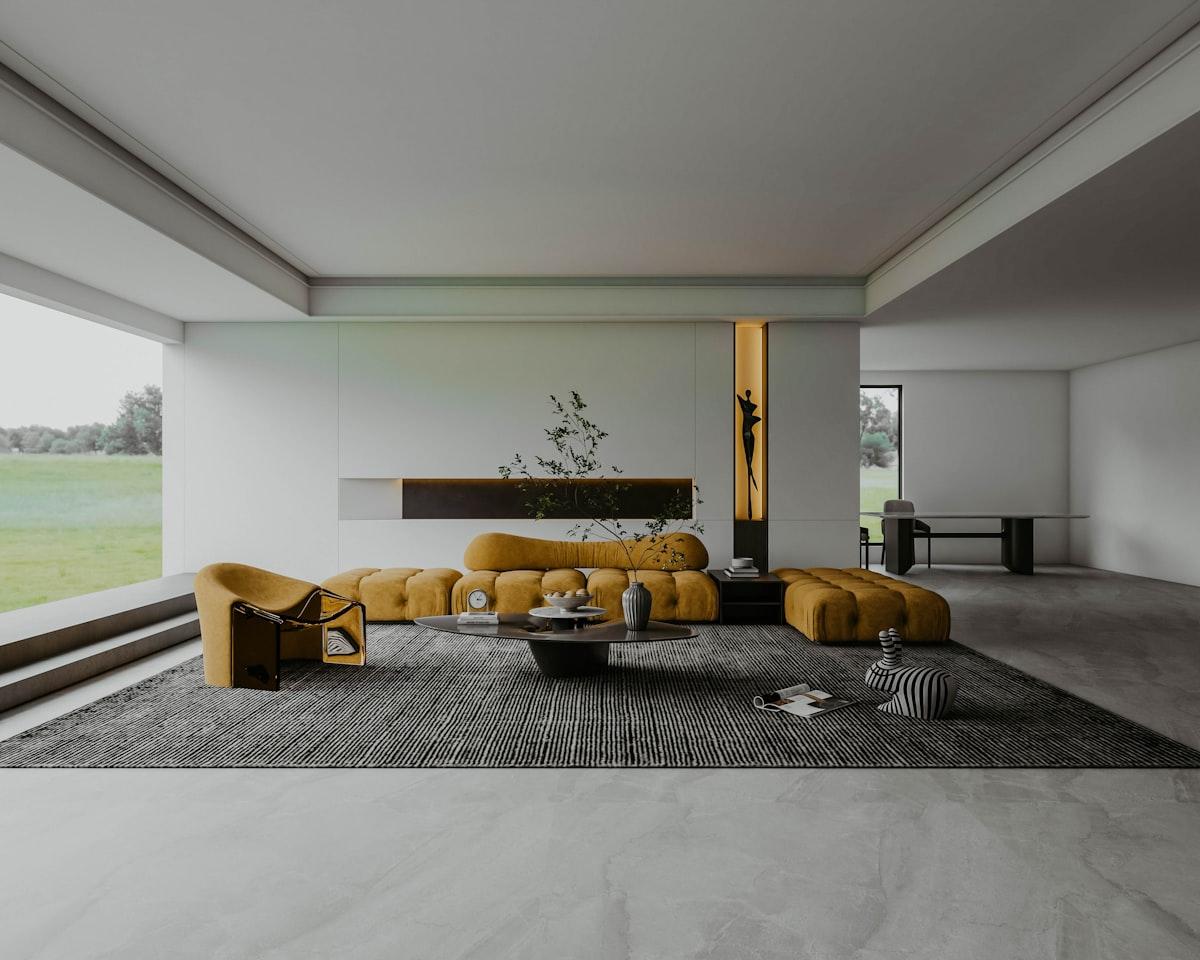
Pen & linked notes
Sketch freehand in seven colors. The moment you lift the pen, a comment box opens and links straight to that sketch.
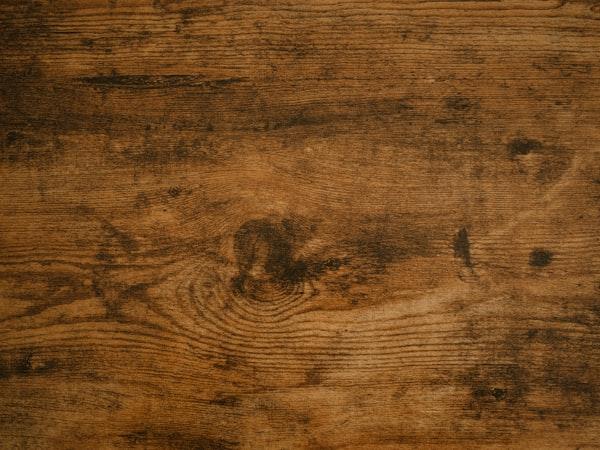
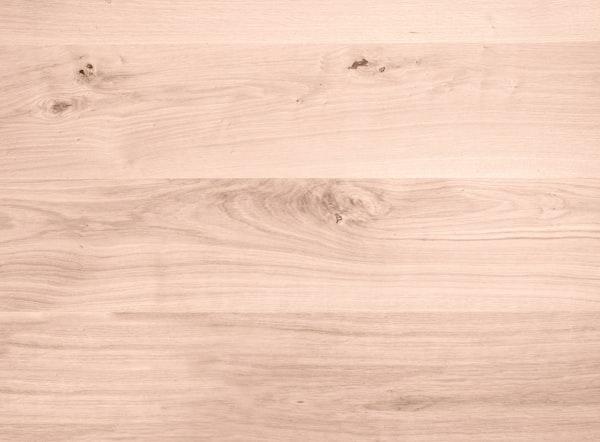
Reference attachments
Attach photos to any comment — “match this wood tone” — so the brief for the next version is unambiguous.
 reference
Multi-file uploads
Bring your renders into one project, then pin and sketch directly on them.
 360°
360°360° panoramas
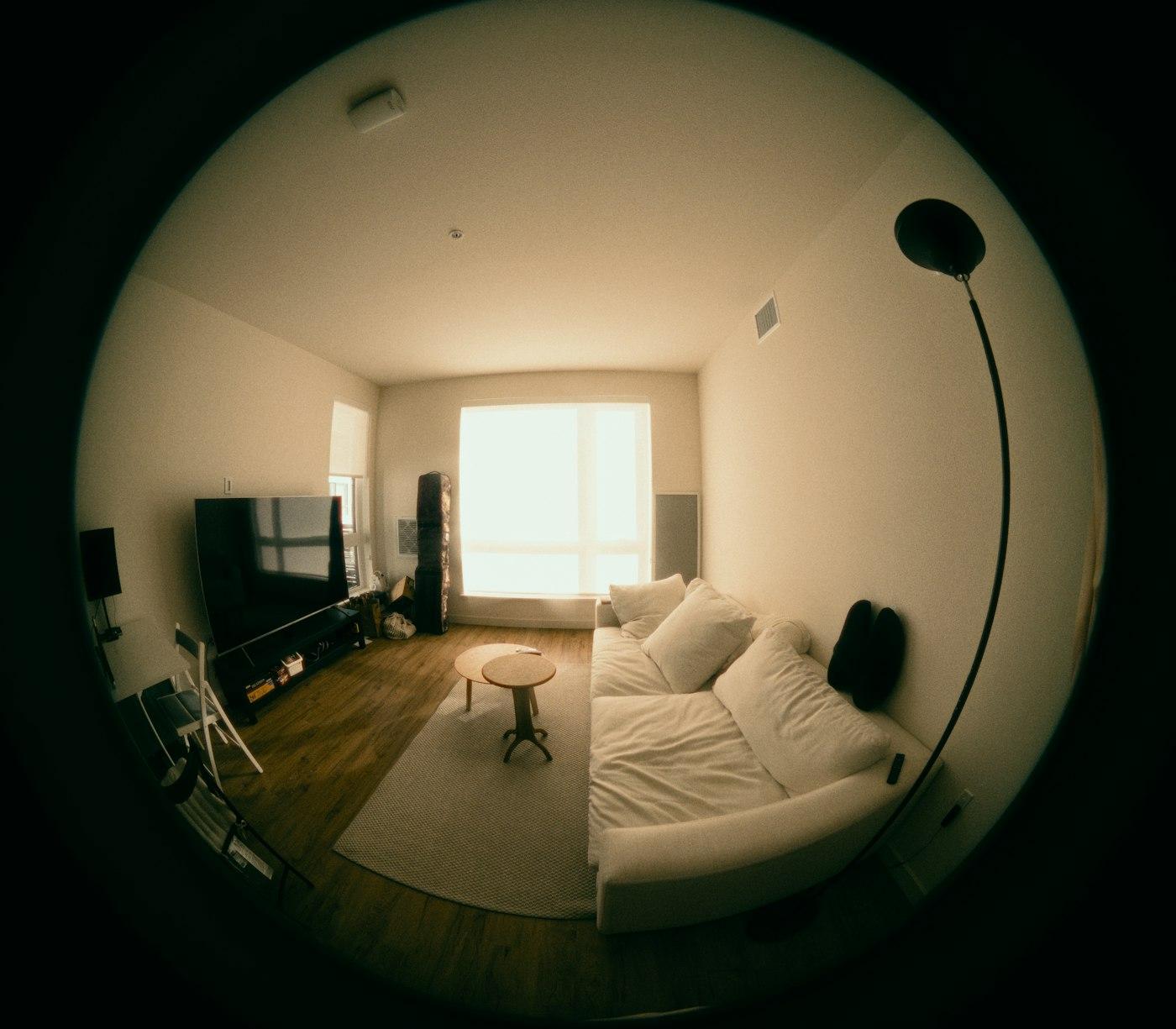
Panoramic renders are detected automatically. Drag to look around, then switch to flat view to pin and sketch.
Make the walls warm white
→Generate from a prompt
Type what you want changed and Revisio generates a new version straight from the prompt — no pin or sketch required.
Conflict
Reversed twice
AI conflict detection
Revisio reads every note across every version — by wording and by position on the image — and flags it when someone reverses themselves.
Every version's feedback, in one timeline
The History tab gathers every comment across every version, filterable by client. One button asks Claude to read them all — by wording and by where each note sits on the image — and surface anyone who's contradicted themselves.
- Filter the full comment history by client name
- Catches reversals worded completely differently
- Groups conflicts by visual location, not just text
Let's make the wall dark wood.
Actually — light wood instead.
Back to dark wood please.
Conflict · on the back wall
Sarah has reversed her wall finish preference twice across versions.
Type the fix. Revisio generates it.
Describe what you want changed — in your own words, or by attaching a reference — and Revisio generates the corrected version itself. Geometry, camera angle, and lighting stay untouched, only what you asked for changes.
- Type a prompt, or turn a flagged note into one automatically
- AI image generation built in — nothing to connect or configure
- Generate creates the next version without leaving the tab
Your prompt
Change the door material to light oak, matching reference image 1.
Revisio will generate
Keep composition, geometry, camera angle, and lighting identical. Change only the entry door to light oak, matching the tone and grain of the attached reference.
Upload a real file and try the full toolset.
Bring your first project into Revisio and see the conflict detection catch something on the first review.