Feedback that remembers what your client already said.
Pin comments, sketch corrections right on the artwork, and let Revisio notice when a client asks for dark wood in V1, light wood in V3, and dark wood again in V7 — before you rebuild it twice for nothing.
Conflict
Sarah reversed the door finish twice.
From first pin to approved version
Four steps, repeated as many times as it takes — Revisio keeps count so you don't have to.
Pin it or sketch it
Click anywhere on the artwork to drop a comment, or grab the pen and circle exactly what needs to change. Every note is tied to a spot on the image, not a vague description.
Upload the next version
New render, new page, new render again — each version keeps its own notes and status, so nothing from V3 gets lost by the time you're on V7.
Let Revisio watch for reversals
Revisio reads every note across every version — by wording and by where it sits on the image — and flags it when the same person changes their mind on the same spot.
Generate the fix, apply it
Type a prompt, or let a flagged note become one automatically. Revisio generates the corrected version itself and it lands as the next one, geometry untouched.
Same door, three versions, one client
Drag the line. This is exactly the kind of reversal Revisio catches before you rebuild it a third time.

V7 asked for dark wood again — Revisio flagged it instantly.
Type the fix. Revisio generates it.
Describe what you want changed, in your own words, and Revisio generates the corrected version itself. Geometry, camera angle, and lighting stay untouched — only what you asked for changes.
- AI image generation built in — nothing to connect or configure
- Prompt keeps everything unmentioned exactly as-is
- One click creates the next version, right inside the review
Your prompt
Change the door material to light oak, matching reference image 1.
Revisio will generate
Keep composition, geometry, camera angle, and lighting identical. Change only the entry door to light oak, matching the tone and grain of the attached reference.
Built for what actually gets reviewed
Renders, brochures, panoramas, and the reference photos everyone attaches anyway.

Pen & sketch
Seven colors, linked straight to a comment thread.
 reference
Reference uploads
Bring the brief in alongside your renders for reference.
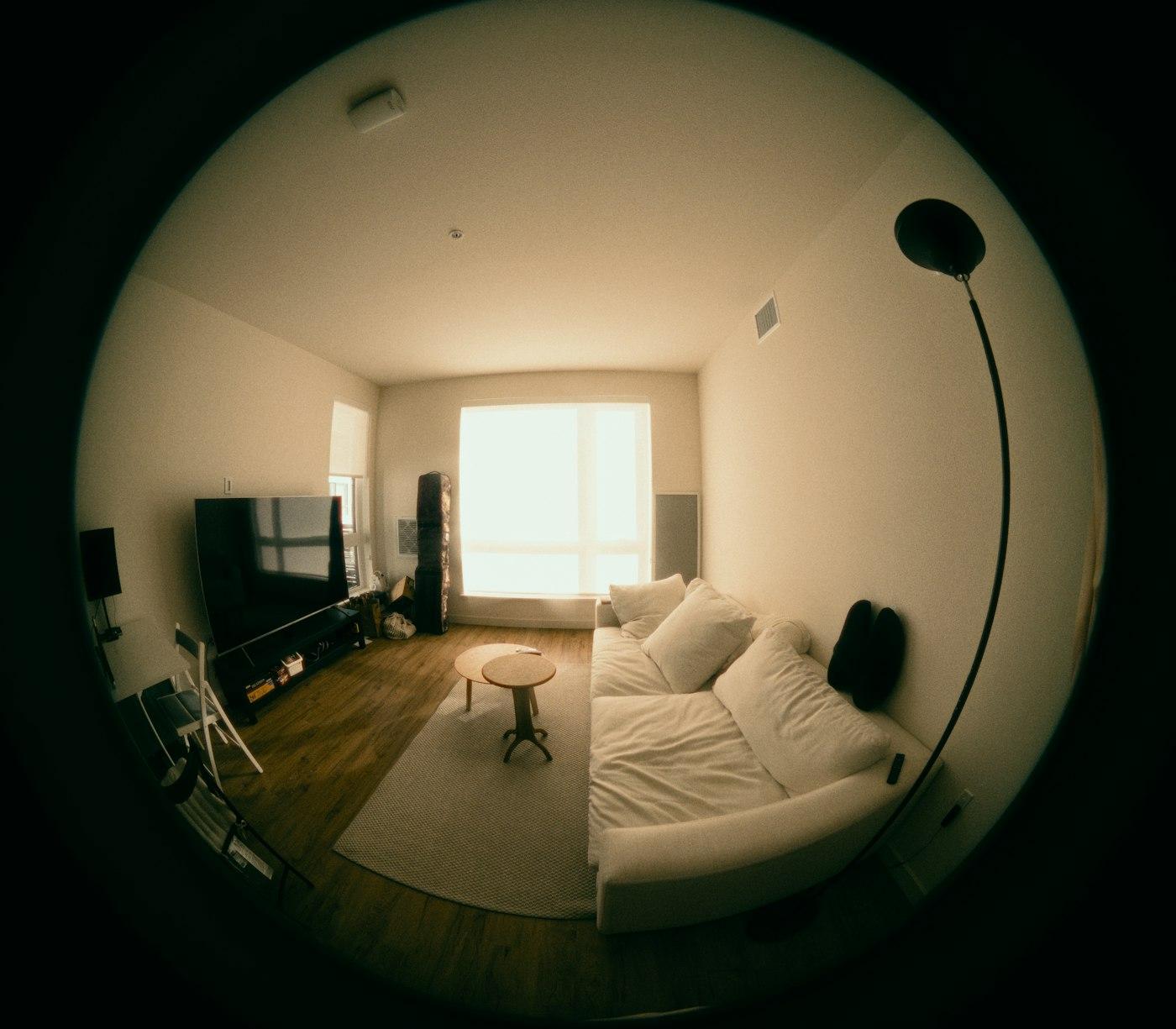
360° panoramas
Detected automatically, reviewed like any other asset.
Attach a reference
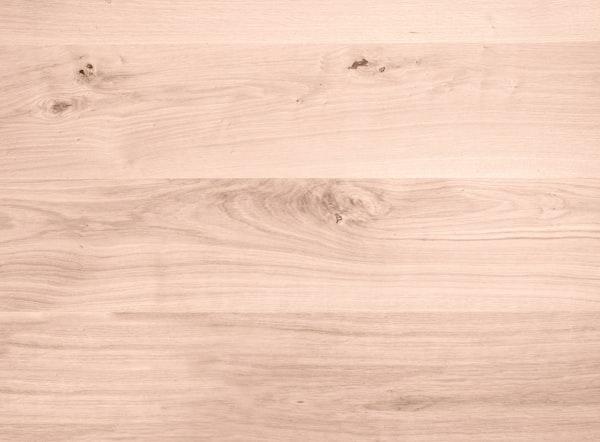
“Match this tone” instead of guessing at wording.
Client memory shouldn't live in your inbox
- Feedback scattered across email, Slack, and text messages
- “Didn’t we already do this?” said out loud, weekly
- Every reversal costs a full rebuild, discovered too late
- Screenshots with red circles drawn in whatever app was open
- Every note lives on the exact pixel it refers to
- Revisio flags it the moment a client contradicts a past version
- Reversals surface before you render, not after
- One pen, seven colors, linked straight to a comment thread
Everything a proofing tool needs, plus the memory it never had
Pins and sketches feel familiar. The AI layer underneath them is what's different.
Pinned comments
Click anywhere on the artwork to drop a numbered pin. Feedback stays attached to the exact spot it's about, not a line in an email.
Pen & linked notes
Sketch freehand in seven colors. The moment you lift the pen, a comment box opens and links straight to that sketch.
Reference attachments
Attach photos to any comment — “match this wood tone” — so the brief for the next version is unambiguous.
Multi-file uploads
Bring your renders into one project, then pin and sketch directly on them.
360° panoramas
Panoramic renders are detected automatically. Drag to look around, then switch to flat view to pin and sketch.
AI conflict detection
Revisio reads every note across every version — by wording and by position on the image — and flags it when someone reverses themselves.
Generate from a prompt
Type what you want changed and Revisio generates a new version straight from the prompt — no pin or sketch required.
Stop rebuilding the same fix twice.
Bring your first project into Revisio and see the conflict detection catch something on the first review.